


A shopper reaches your checkout, taps pay, and waits. Nine seconds later the button still hasn't appeared, so they leave. Your designer blames the code, your developer blames the images, and nobody owns the lost order. That gap between how a screen looks and how it really behaves is where web and application design lives, and it's where budgets slowly leak.
What Web and Application Design Covers
Say that checkout fails on a mid-range phone. The layout is fine, the brand colors are perfect, but the payment button loads last because a hero video and three tracking scripts load first. Whose job was that? In a well-run project, it's everyone's brief from day one, because design here means shaping how a product looks, behaves and performs for people on browsers, phones and internal staff tools.
Think of an architect who also designs the plumbing, signage and fire exits. The facade gets the compliments, but people judge the building by whether they can find the door, read the signs and get out safely. Your interface works the same way.
The Three Layers Every Product Needs
- Experience layer: Research, information architecture and user flows. This decides what goes where, and in what order a person moves through sign-up, search or checkout.
- Interface layer: The visual system, components and content. Buttons, forms, error messages and empty states all live here, ideally as reusable parts rather than one-off screens.
- System layer: Front-end structure, APIs, performance and security. This is the plumbing that decides whether the payment button shows up in one second or nine.
Most of the web now runs on shared systems rather than hand-built pages. As of June 2024, 51% of websites in the HTTP Archive desktop dataset were powered by a content management system, according to the HTTP Archive Web Almanac. That means your design decisions are mostly decisions about templates and components, not individual pages. For a closer look at how component thinking applies in practice, a UI guide for SaaS teams from ogBlocks walks through dashboard patterns worth borrowing.
Enterprise products need all three layers because users don't separate them. A beautiful screen that stutters on a phone or breaks with a screen reader still loses the sale. The same logic applies when you add AI to existing software. A prompt management system, for example, lets a team plug AI into a current app while keeping prompts, costs and logs under control instead of scattering them across code. You'll see how that works in practice later in this guide.
Write a scope that names all three layers, experience, interface and system, before any design work starts.
Web Versus Native Design Concerns
The verdict first. Entry point, navigation, update cycle and device access drive most differences between web and native, and they set your design brief before anyone draws a screen. Get these wrong and you'll redesign later at full price.
| Design concern | Web application | Native mobile app | Design consequence |
|---|---|---|---|
| Entry point | URL, search results, shared links | App store install | Web must show value on the first screen; native must justify the install |
| Navigation model | Browser back button, URL-addressable states | Platform gestures, tab bars, navigation stacks | Web needs deep links for every key state |
| Update cycle | Deployed to every visitor immediately | Users update; store review adds days | Native needs forced-update and versioning rules |
| Device access | Browser APIs with permission prompts | Full camera, sensor, Bluetooth and background access | Hardware-heavy flows favor native |
| Offline behavior | Service workers and cache strategies | Local database and background sync | Define offline states per platform |
| Accessibility surface | Browser plus ARIA semantics | VoiceOver and TalkBack platform APIs | Test with both screen reader families |
| Discoverability | Search engine ranking and links | Store search, ratings and reviews | Web needs SEO planning; native needs store listing design |
| Component system | One responsive codebase | Platform guidelines such as Material and Human Interface Guidelines | Decide which components are shared and which are platform-specific |
Start with entry point. A URL can be shared in an email, indexed by search and opened with zero commitment, so your first screen has seconds to prove value. An app store install asks for storage, permissions and trust, so your store listing and first-run flow carry that weight instead.
Navigation and updates follow. Web users expect the back button to work and every important state to have a link they can bookmark or send to a colleague. Native users expect gestures and tab bars that match their phone. On the web, a fix reaches everyone the moment you deploy. On native, store review and slow updaters mean old versions linger, so you need forced-update rules for breaking changes.
The Decision Rule
Choose web when reach and fast updates matter most. Choose native when hardware access or offline reliability drives the value, such as barcode scanning in a warehouse with patchy Wi-Fi. Choose a cross-platform framework when one codebase must serve both and your team can't staff two. If you're weighing the middle path, AppLighter's guide to mobile web apps from AppLighter lays out where browser-based apps hold up well.
Many teams ship a responsive web app first, then add native later for the features that need hardware. Either way, settle the component question early. Web teams share components across browsers, while native teams follow Material on Android and the Human Interface Guidelines on iOS. List each component as shared or platform-specific before you build the design system, or you'll maintain two of everything by accident.
The UX Process From Discovery to Launch
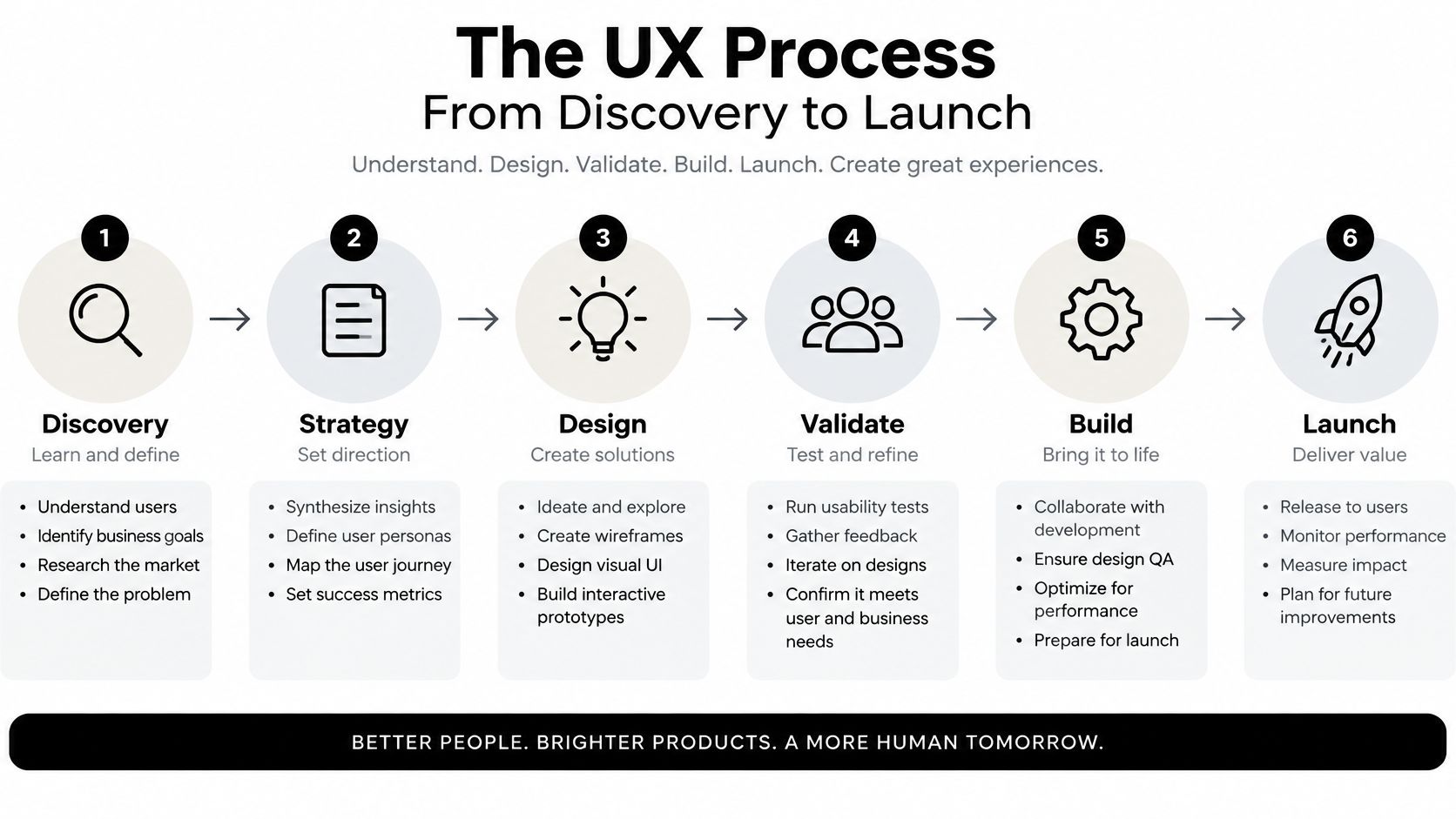
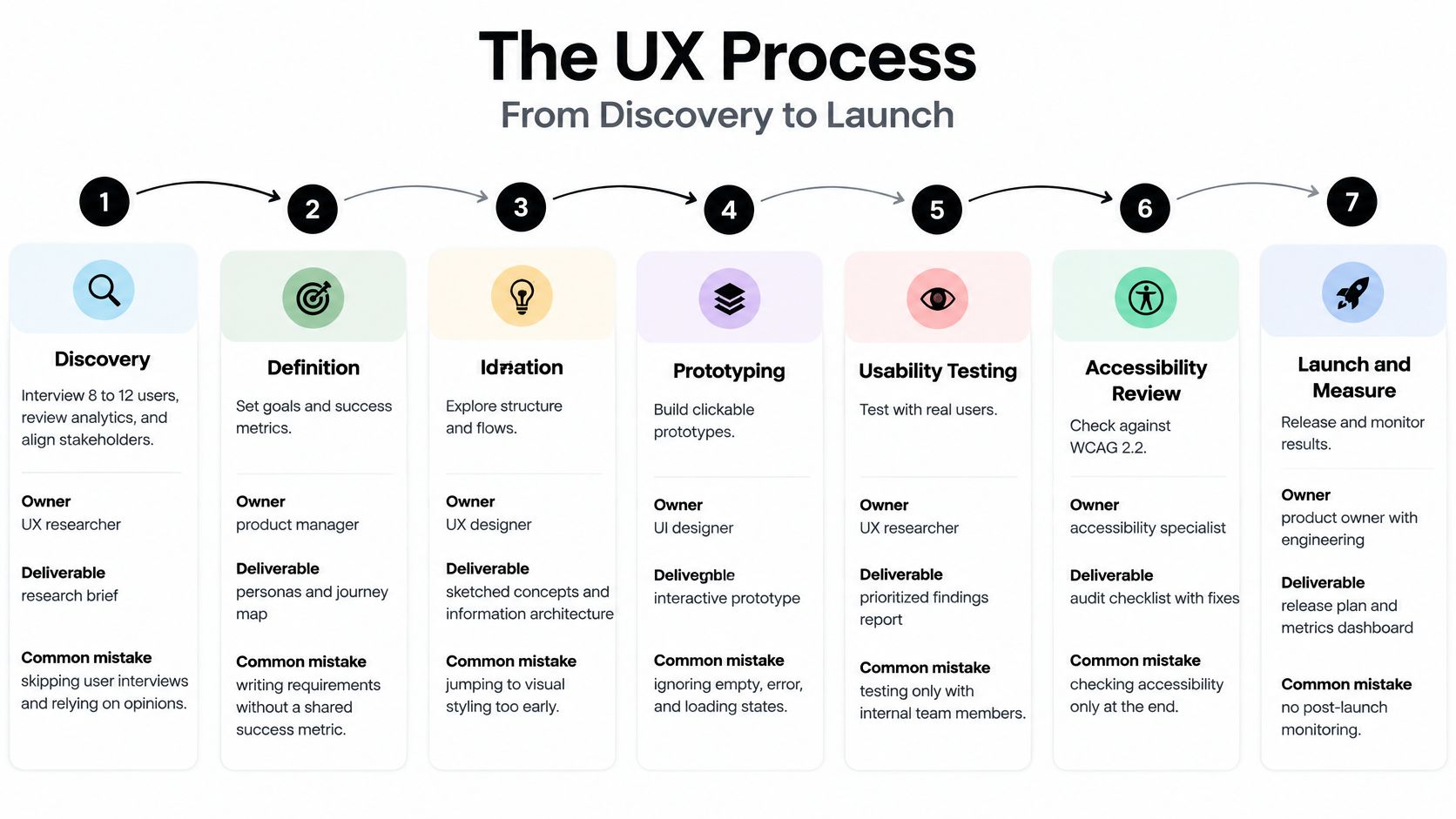
A skipped phase doesn't disappear. It shows up later as a redesign, a support queue or a launch nobody can evaluate. Each of the seven phases below converts a guess into a decision with an owner and a deliverable, and each has a predictable way teams cut it to save a week they repay with interest.
1. Discovery. Interview 8 to 12 users, review analytics and align stakeholders on the problem you're solving. The product manager and UX researcher own this phase, and the deliverable is a problem statement with success criteria. Skip it and you design from the loudest opinion in the room. For formats that fit a small team, our guide to practical user research techniques covers interview and testing methods.
2. Information architecture. Build the sitemap, user flows and content inventory before anyone draws a screen. The UX lead owns annotated flow diagrams showing how someone moves from landing to done. Skip it and screens get designed before flows exist, so navigation breaks the first time a user arrives from a deep link instead of your home page.
3. Prototyping. Wireframes first, then a clickable prototype covering your three most important journeys. The UI designer owns it. A prototype costs hours to change, while a flow built in code costs sprints, and that gap is what this phase exists to capture.
4. Usability testing. Run sessions with five users per round, then run another round once fixes land, because problems repeat quickly across participants. The UX researcher owns a prioritized findings list. Skip it and the leadership demo becomes your only test, and nobody clicks the wrong thing in a demo.
5. Design system and handoff. Define tokens, components and states, including empty, error and loading, with annotated specs engineers can build against without guessing. The design lead and front-end lead share ownership. Skip it and components drift between pages until nobody can say which button is authoritative. Teams scoping a system-level approach can compare options in web design frameworks for systems integrators.
6. Build and QA. Engineers implement against the design system while QA runs functional, accessibility and performance checks in parallel rather than at the end. Engineering and QA leads own this together. Push those checks past release and you'll fix them under launch pressure, at launch prices.
7. Launch and iterate. Release to a small share of users first, watch field data and hold a review after 30 days. The product manager owns that review. Skip it and nobody learns whether the redesign beat the baseline, so the next project starts from the same guesses.
Who Owns What, and How to Hire for It
| Role | Owns | Hiring signal |
|---|---|---|
| Product manager | Scope, success criteria and launch metrics | Has written a problem statement with baselines |
| UX researcher | Interviews, usability rounds and findings | Has run sessions that included disabled participants |
| Front-end lead | Component architecture, bundle budgets and Core Web Vitals | Ships against 75th-percentile field data |
| Accessibility reviewer | WCAG acceptance criteria, audits and assistive-technology testing | Tests with VoiceOver, TalkBack and keyboard only |
| Security owner | Threat model, least privilege and secrets handling | Turns threats into testable requirements before framework choice |
Small teams should combine roles, and one hire can reasonably cover research and interface design or product management and QA. Name your accessibility and security owners separately anyway, even when one person wears two hats, because unnamed work doesn't happen. Before signing a candidate or an agency, ask for a shipped project with field-measured performance results. A portfolio of polished screenshots tells you nothing about whether the product survived real phones on real networks.
Performance and Architecture Limits That Shape Design
Performance targets aren't post-launch chores for the SEO team. They're design constraints, as real as screen width. Google defines three field-measured targets in its Core Web Vitals documentation: Largest Contentful Paint within 2.5 seconds for loading, Interaction to Next Paint below 200 milliseconds for responsiveness, and Cumulative Layout Shift below 0.1 for visual stability.
| Metric | Good threshold | Design lever |
|---|---|---|
| Largest Contentful Paint (loading) | 2.5 seconds or less | Prioritize the largest above-the-fold asset and remove render-blocking CSS and fonts |
| Interaction to Next Paint (responsiveness) | 200 milliseconds or less | Split long JavaScript tasks and defer noncritical hydration |
| Cumulative Layout Shift (visual stability) | 0.1 or less | Reserve explicit dimensions for images, ads, embeds and late-loading components |
Each metric points at a specific lever. Slow loading usually means your biggest above-the-fold asset waits behind render-blocking CSS, fonts or a carousel nobody asked for. Sluggish responses usually mean long JavaScript tasks and heavy main-thread event handlers are fighting the user's tap. Layout shift, the infuriating jump just as you tap, usually means images, ads or embeds load without reserved dimensions.
Architecture Choices That Set Your Numbers
- Server-rendered or static pages: Best for content-heavy templates like product and article pages, where users come to read, not manipulate.
- Client-side rendering: Reserve it for interactive surfaces like dashboards and editors, where the interaction justifies the JavaScript cost.
- Content delivery network: Serves static assets from nearby servers, which matters more than most redesigns for global audiences.
- Component libraries with bundle caps: A design system that ships unlimited JavaScript per component will eat your budget one dropdown at a time.
For a deeper treatment of these trade-offs, our overview of software architecture best practices connects rendering choices to long-term maintenance cost.
Practical rule: Enforce budgets at the 75th percentile of real-user data, segmented by device and connection type.
Lab tests on a fast office connection miss slow mobile CPUs and weak networks, which is where your growth market probably lives. Instrument templates and critical journeys, search, checkout and login, not just the home page. Then watch for regressions after every release, because performance rarely collapses all at once. It erodes one third-party script at a time.
Accessibility and Security Requirements to Design In
A shopper reaches checkout, but the submit button has no accessible name. A screen reader user cannot tell what it does, and the sale is lost. Accessibility failures often come from basic interface choices: text contrast, image descriptions and form labels.
The WebAIM Million 2025 results found detectable WCAG failures on 94.8% of the one million most popular home pages, with an average of 51 errors per page. Low-contrast text, missing image alternative text and missing form labels were the most common issues. These are design-system problems as much as page-level ones. Set WCAG 2.2 AA as your baseline, then build accessible tokens and components once so each page inherits the same fixes.
Automated scanners catch only part of the problem. Keyboard flow, focus management, error recovery and screen-reader behavior need manual testing with disabled users. Adding ARIA labels to a broken flow is like labeling the buttons on a locked door: the labels help, but the user still cannot get through.
Security Belongs in the Same Brief
A design can expose data even when its screens look polished. NIST's Secure Software Development Framework groups security work into preparing the organization, protecting software, producing well-secured software and responding to vulnerabilities. Turn those areas into requirements before choosing frameworks: least-privilege authorization, tenant isolation, secure secrets handling and a threat model for external interfaces, admin tools and third-party integrations. Privacy-by-design principles can help translate these requirements into testable criteria.
Make the requirements specific to the task:
- Ecommerce checkout: Use strong contrast and labeled form fields. Preserve entered data when a payment error occurs, so customers do not have to start over.
- Fintech: Provide secure authentication, plain-language error messages and audit trails users can understand.
- Healthcare: Write consent screens and data-handling notices in plain language. Avoid dark patterns around permissions.
- Public services: Support multilingual content, keyboard-only paths and low-bandwidth access to essential tasks.
Retrofitting these requirements costs more than designing them in. If an authorization gap sits at an architectural boundary, fixing it may mean redesigning service trust, not patching a single endpoint.
Where AI Belongs in the Design Stack
A generated screen can look finished while leaving users unsure what happens to their data or how to complete a task. A plausible screenshot is not proof that the interaction is usable, explainable, secure or inclusive. A 2025 systematic mapping study covered in the Journal of Systems and Software article on AI and web accessibility reviewed 31 studies on AI and web accessibility, including automated compliance assessment, correction suggestions, image alternative text and alternative interface generation. The design question is how to review generated interactions before they reach users.
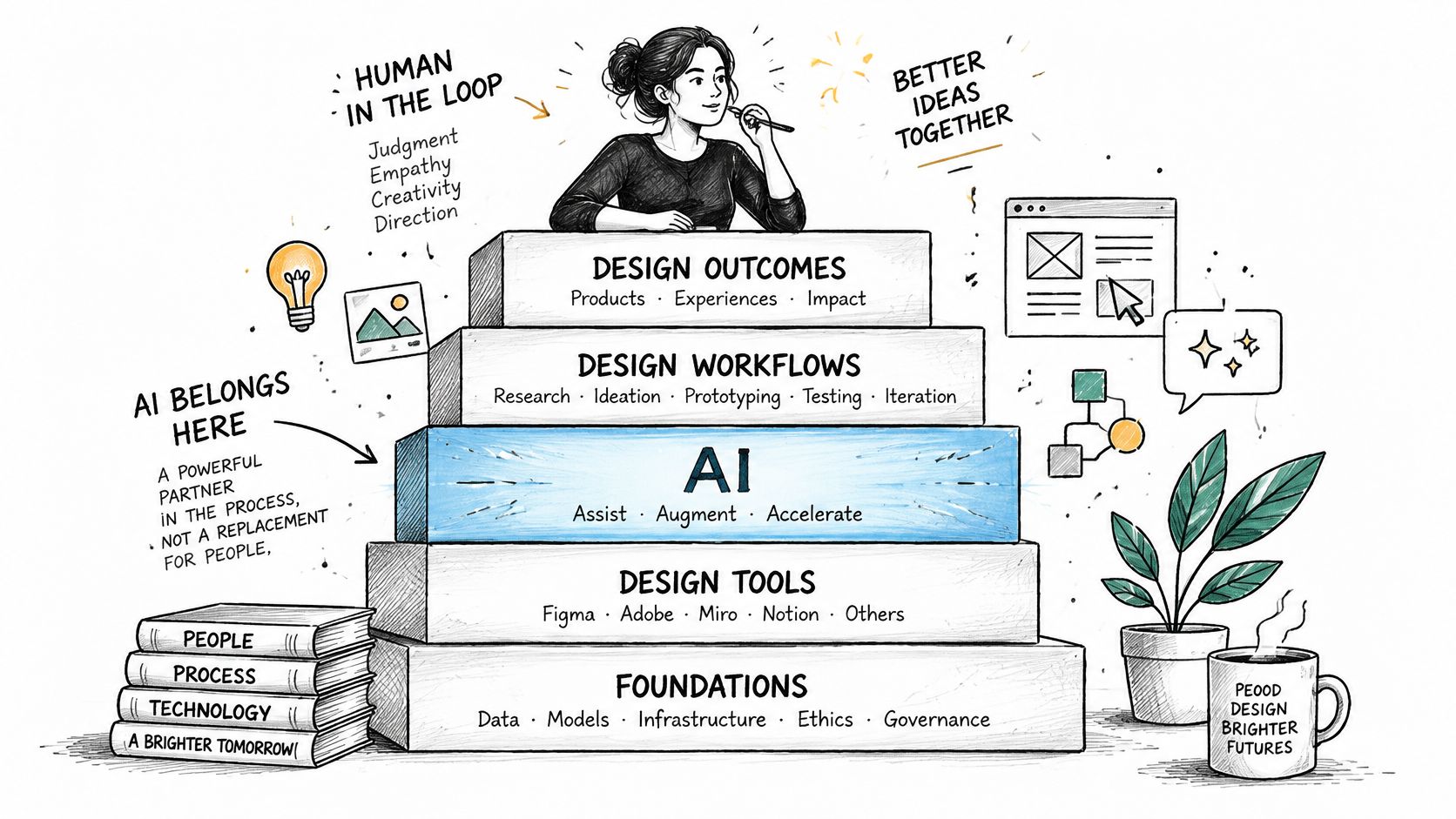
AI can support four parts of the design stack, each with a different cost if the output fails.
Personalization and recommendations can tailor ecommerce and media screens, but users who decline tracking still need a working store. Keep controls visible and provide a non-personalized default. Anomaly detection can surface issues in dashboards and admin tools. Explain why an alert fired, or users may stop acting on warnings.
Assistive features, such as alternative text suggestions, can speed up content work. A person should review each suggestion before publishing: a confidently wrong description can mislead users. AI-assisted interface drafting can help teams explore layouts, but prompts should include WCAG success criteria, and teams still need to test keyboard navigation and focus order. Generated interfaces can miss complex interactive requirements, leaving users unable to complete a task.
Trust cuts across all four uses. Many people doubt that companies using AI will keep their data safe. In healthcare, finance and public services, users need clear explanations, meaningful consent and a human override when the model gets it wrong.
The Governance Checklist
- Version every prompt: Roll back a change if it degrades the answers.
- Log every model call: Review what the system told a customer and when.
- Track token cost per feature: Catch a feature whose usage is consuming too much of the budget.
- Define failure states and human override: Let users continue or reach a person when the model is unavailable.
- Monitor model changes: Catch provider updates that alter the product's behavior.
Wonderment's prompt management system supports this operational layer. Without prompt versions, call logs and cost tracking, a feature that works in a demo can become difficult to audit, control or budget once customers use it.
Success Metrics and the Pitfalls They Expose
A metric is a diagnostic, not a trophy. When a number drops, trace it to the design choice or release that may have caused the change before redesigning at random.
| Metric | Target or signal | Pitfall it exposes |
|---|---|---|
| Core Web Vitals (LCP, INP, CLS) at the 75th percentile | Thresholds set in the Performance and Architecture Limits section | Regressions traced to the matching design lever in the Performance and Architecture Limits section |
| Task completion in usability tests | Every participant completes core tasks without moderator help | Unclear navigation or hidden primary actions |
| Accessibility errors on key templates | Zero critical errors at release | Design system components that skip labels, contrast or focus states |
| Conversion on the core journey | Measured against the pre-launch baseline | Friction in checkout, sign-up or search |
| AI cost per feature per month | Within the approved budget | Unversioned prompts, unlogged calls and unmonitored token spend |
Start with performance and accessibility signals because they are relatively mechanical. If a marketing banner causes a layout shift, the problem is likely its dimensions or placement, not the copy. If missing form labels spike after a component refactor, inspect the shared component. Segment results by template so a site-wide average does not hide the source.
Business and AI signals need the same care. If conversion dips as layout shifts worsen on the product template, investigate the layout before funding a copy rewrite. If AI cost rises while usage stays flat, check whether prompts have grown or retries are going unlogged.
The Pitfalls Behind the Numbers
Four habits distort results: replacing user tests with leadership opinion, adding third-party scripts without tracking their effect on page weight, postponing keyboard testing until a customer reports a problem, and running AI features without cost or logging controls. Each can turn a measurable design constraint into lost revenue, rework or an unexpected bill.
Set a review cadence:
- Weekly: Review field performance by template and device.
- Per release: Scan key templates for accessibility issues and check keyboard use on changed flows.
- Monthly: Compare business metrics with the baseline and AI cost per feature with its budget.
- At 30 days post-launch: Run a fresh usability round on the core journeys.
A metric without a baseline cannot show improvement. Record starting numbers during discovery, while the existing product is still measurable.
Confirm Your First Design Scope Before You Build
A vague scope rarely fails in a meeting. It fails six months in, when the checkout redesign collides with a security review nobody scheduled and the launch slips a quarter. You don't need a hundred-page specification. You need five decisions made clearly enough that a designer, an engineer and a finance lead would all describe the project the same way. You can finish this list this quarter.
- Name the three user journeys that define success, such as sign-up, checkout or booking, and let everything else wait.
- Choose web, native or both using the concern comparison, especially entry point, update cycle and device access.
- Set performance budgets at the Core Web Vitals thresholds and an accessibility target of WCAG 2.2 AA.
- Assign an owner to each of the seven process phases and name your accessibility and security reviewers out loud.
- Pick four metrics and record their baselines now, while the old product is still measurable.
Each decision is a constraint you negotiate once, on paper, instead of paying for it later as rework or a compliance scramble.
Plugging AI Into What You Already Have
Most business leaders aren't starting from zero. You have a working app, real users and a backlog, and you want AI inside it without a rewrite. The risk is that AI features arrive with none of the controls the rest of your stack takes for granted: no record of which prompt produced which answer, no defined path into your data, no running total of spend.
Wonderment Apps provides an administrative toolkit for prompt management, integrations and token cost control that teams plug into existing software rather than rebuilding around it. Prompts are governed rather than edited blind, features reach your data through managed connections, and token spend is visible while it accumulates rather than when the invoice arrives. That suits organizations modernizing ecommerce, fintech, healthcare or SaaS products that need personalization, recommendations or anomaly detection without losing control of how AI runs.
Bring your five decisions to the conversation. You will leave knowing where AI fits in your current stack and what it costs to operate.
Wonderment Apps helps business leaders design, build and modernize web and mobile applications that scale, from UX research and design systems to AI integration with prompt, logging and cost controls. If you're scoping a new product or adding AI to one you already run, visit Wonderment Apps to talk through your first design scope.